Singapore Data Backup Guide: Avoid Losing Photos & Files



It usually happens in a split second. A phone slips out of a pocket on the MRT, or a laptop screen stays black after a coffee spill at a Funan cafe. In that moment, the device doesn’t matter—the data does. Here is how to make sure you never lose what can’t be replaced.
🇸🇬 Too Busy? Here is the TL;DR:
- Don’t just sync, backup: Deleting a photo on your phone deletes it on iCloud/Google too. That’s not a backup!
- The 3-2-1 Rule: 3 copies, 2 different devices, 1 in the Cloud.
- Protect your Singpass: Data loss can lock you out of your daily essentials.
- Quick Tip: Use an external drive for your “Kiasu” level protection.
In a city where our entire lives—from Singpass access to years of family photos—live on our devices, a Singapore data backup guide is no longer just for “tech people.” It is a basic survival skill. We often treat our gadgets as permanent, but hardware is fragile. Data loss doesn’t always come from a dramatic hack; more often, it is a simple hardware failure or a moment of bad luck.
Understanding how to backup data Singapore style means more than just buying an external drive. It’s about building a system that works in the background so you can prevent data loss Singapore residents face every day. Whether it’s phone data loss recovery or laptop data backup tips, the goal is to ensure your digital life survives even if your device doesn’t.
Digital workflows are also expanding beyond storage habits. Many professionals now integrate AI tools into daily micro-tasks — from sorting files to automating admin routines — which increases reliance on protected digital data. See how this trend is evolving in Singapore workplaces:
Singapore Workplace Automation: Small Tasks AI Guide
Why Data Loss Happens Faster Than People Expect
We live in a high-mobility, high-humidity environment. Sudden phone loss and theft scenarios are real, especially in crowded transit hubs. While Singapore is incredibly safe, a forgotten phone on a bus or a tablet left behind at a food court often results in a permanent loss of the data on that device if it isn’t synced.
MRT Survival Tip: In Singapore, a lost phone is often picked up by a kind soul. However, if you haven’t enabled ‘Find My’ or ‘Remote Wipe’, your private data is exposed the moment it leaves your pocket at a busy station like Dhoby Ghaut. Don’t rely on luck—rely on your settings!
Daily digital dependence extends beyond phones and laptops. Transport payments, tickets, and commuting access are now stored on devices as well. Losing a phone may disrupt travel access too — something explained here:
SimplyGo & EZ-Link Digital Transport Guide
Then there is the hardware reality. Laptop crashes and storage failures often happen without warning. Solid State Drives (SSDs) are fast, but when they fail, phone data loss recovery or laptop recovery becomes nearly impossible without professional (and expensive) help. Finally, account lockouts—forgetting your primary email password or losing access to a 2FA device—can be just as devastating as a broken screen.
📊 Quick Check: How ‘Safe’ is your Data?
Ask yourself these 3 questions:
1. If your phone falls into the Singapore River today, is your data safe?
(A) Yes, everything is on Cloud. (B) Only some stuff. (C) Gone forever lah.
2. When was the last time you checked your “Auto-Backup” actually worked?
(A) This week. (B) Last year? (C) Never checked before.
Result: If you answered (C) for any, you are in the “Danger Zone”. Follow the 3-2-1 rule below immediately!
What People Most Regret Not Saving
When people seek digital file protection after a disaster, the regret usually falls into three categories:
- Photos and Memories: This is the #1 regret. What files people regret losing most are usually the photos of children, passed-away relatives, or travel memories that weren’t on the cloud.
- Admin and Legal Documents: Scans of birth certificates, property documents, or tax records that were only stored in one “Downloads” folder.
- Notes and Messages: Years of digital journals, business ideas, or sentimental chats that were never exported.
[Image showing the “3-2-1 Backup Rule” diagram: 3 copies, 2 different media, 1 off-site]
The Singapore Data Backup Guide Basics
The foundation of backup data Singapore residents should follow is the 3-2-1 rule. Have three copies of your data, on two different types of media, with one copy off-site (cloud).
Many people rely on cloud backup safety, but they confuse “syncing” with “backing up.” If you delete a photo on your phone and it disappears from your cloud, that’s a sync, not a backup. A true backup is a separate copy that stays safe even if the original is deleted or corrupted.
Reliable syncing also depends on stable connectivity. Interrupted uploads or unstable home networks are a common reason backups silently fail. If you suspect connection issues, check this practical guide:
Singapore Home WiFi Troubleshooting Guide
🛡️ The “Kiasu” Data Protection Checklist
Are you truly safe? Check if you’ve secured these 3 Singapore-specific essentials:
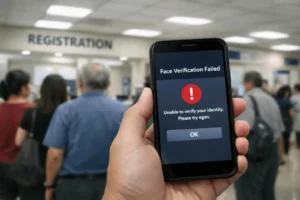
- Singpass Face Verification: Do you have a secondary device linked in case your main phone dies?
- Bank Token/Digital Keys: If you lose your phone today, do you have your bank’s physical token or a backup plan for OTPs?
- WhatsApp/Telegram History: Is your chat backup linked to an email you actually remember the password for?
Backup Mistakes That Create False Security
The biggest mistake is assuming sync equals backup. If you use Google Drive or iCloud, you have one layer of protection, but it’s not foolproof. Ignoring verification checks is another common error. People buy an external hard drive, set it to “auto-backup,” and then never check if the files are actually there. A year later, they find out the drive failed months ago.
Simple Backup Routines That Actually Stick
You don’t need a complex IT department to avoid losing photos and documents. You just need best daily backup habits for devices:
- Automated Cloud Sync: Enable iCloud, Google Photos, or OneDrive. This is your first line of defense.
- The “Weekly Plug-In”: Every Sunday, plug your laptop into an external drive and let Time Machine (Mac) or Windows Backup run.
- The “Annual Archive”: Once a year, move your most important photos and documents to a second physical drive or a high-security cloud vault like Proton Drive.
Psychological Barriers to Backing Up
Why do we wait? It’s usually the “It won’t happen to me” mindset. We see backing up as a “weekend project” that never happens. This overcomplication paralysis—trying to find the “perfect” software—leads to doing nothing. The best Singapore data backup guide advice is this: a messy backup is better than no backup.
| Service | Est. Cost | Best For |
|---|---|---|
| Google One / iCloud | S$2.90 – S$14.00/mo | Daily phone photos |
| External SSD (Portable) | S$80 – S$200 (One-time) | Work files & Laptop |
| Proton Drive (Secure) | Free – S$15/mo | Sensitive documents |
A personal note: I used to be very casual about my data. Then, during a rainy season move, my primary laptop took some water damage. I thought I was fine because I used “sync.” But because I had accidentally deleted a folder to save space a week prior, that folder was gone from the cloud too. I lost three years of freelance writing work in an instant. Now, I follow a “Double Cloud” and “Single Physical” rule. It takes 5 minutes a week, but the peace of mind is priceless.
Quick Checklist (Save This)
✅ Do This
- Enable “Find My Phone” on all devices to prevent permanent loss after theft.
- Use cloud backup safety features for your primary photo gallery.
- Keep a physical backup of your most important documents on a USB or HDD.
- Test your backup once every three months (try opening a file from the drive).
- Enable 2FA on your cloud accounts, but keep a physical “recovery code” in a safe.
- Check your “Trash” or “Recently Deleted” folders before emptying them.
- Use an “Offline” password manager or write down master keys on paper.
- Organize your files into a “Priority” folder so you know what to save first in a rush.
- How to backup data before losing phone: Set it to sync only on Wi-Fi to save data.
- Invest in a rugged, shock-proof external drive for physical backups.
❌ Avoid This
- Do not assume a “Syncing” service is the same as a permanent backup.
- Do not keep your physical backup drive in the same bag as your laptop.
- Do not use the same password for your cloud storage and your email.
- Do not ignore “Storage Full” warnings on your phone; it stops backups.
- Do not rely on a single USB thumb drive for long-term storage (they fail easily).
- Do not wait for a “clicking sound” in your laptop to start backing up.
- Do not store sensitive bank info in unencrypted “Notes” apps.
- Do not forget to backup your “WhatsApp” or “Telegram” chats separately.
- Do not share your cloud login with others unless it’s a family plan.
- Do not think prevent data loss Singapore is a one-time task—it’s a habit.
Official Resources & Cybersecurity
For official advice on protecting your digital life in Singapore, visit:
Don’t wait until it’s too late! 🛑
We’ve all had that “heart drop” moment when a screen goes black. What’s your biggest data nightmare? Or do you have a better backup hack for fellow Singaporeans?
👇 Share your story in the comments below!
Know a friend who is still “living on the edge” with zero backups? Send this guide to them on WhatsApp. It might save their wedding photos or baby videos today.
Editorial Note
This guide reflects everyday digital habits observed among Singapore residents — from sudden device loss to unexpected failures. It is not technical advice, but a practical lifestyle perspective on protecting personal data in an always-connected environment.