
Singapore Home Wi-Fi Troubleshooting: Fix Slow Internet & Dead Spots

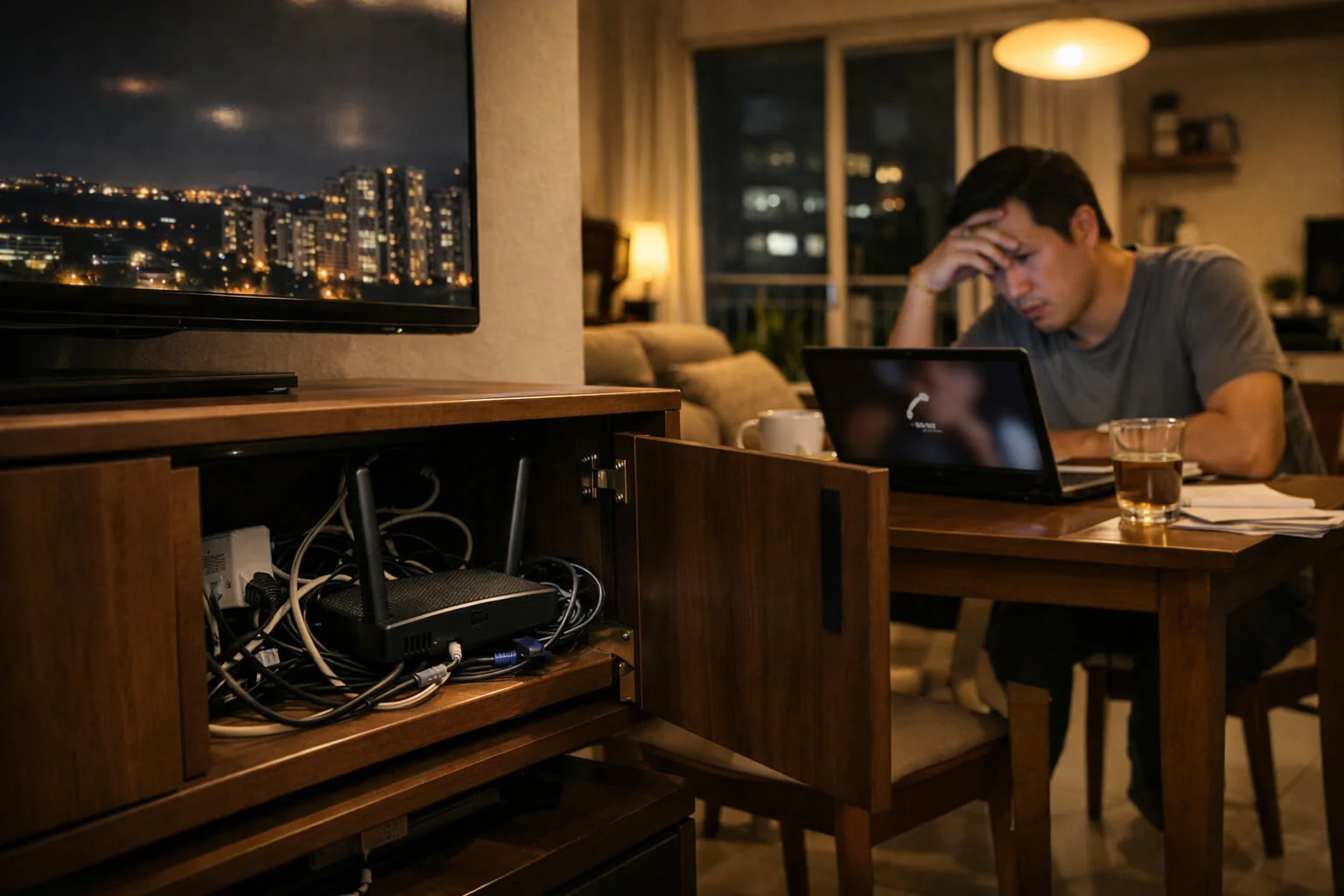

It is the modern Singaporean nightmare: You pay for a lightning-fast fibre broadband plan, yet your Netflix is buffering, and your Zoom call just froze. The problem isn’t the internet. The problem is your air.
The Night Your Wi-Fi Betrays You (A Familiar Singapore Scene)
It’s 8:30 PM. The dinner plates are cleared. In the living room, dad is streaming a 4K movie. In the bedroom, the teenager is gaming. You are sitting at the dining table trying to finish a late-night video conference.
Suddenly, the video freezes. The audio turns into a robotic stutter. Someone shouts from the bedroom, “Is the Wi-Fi down?”
This is the moment Singapore home Wi-Fi troubleshooting usually begins—in a state of mild panic. Most people immediately blame the telco. “My plan is 1Gbps, why is it so slow?”
The hard truth is that your internet connection to your house is probably fine. The problem is the last ten meters: the invisible Wi-Fi signal trying to penetrate the dense concrete walls of your HDB flat. Wi-Fi slow Singapore home issues are rarely about the “speed” you buy; they are about the “signal” you receive.
⚡ 30-Second Summary
- Not the Telco’s Fault: 90% of the time, slow internet in SG is due to concrete walls, not Singtel, StarHub, or M1.
- Quick Fix: Move your router out of the TV console. Put it high up and in the open.
- Permanent Fix: For 4-room HDBs and larger, upgrade to a Mesh Wi-Fi system (not a cheap extender).
First: Is It Wi-Fi or the Internet Line?
Before you restart everything, you need to diagnose the patient. Is the internet line dead, or is your Wi-Fi just weak?
Quick speed test logic
Stand right next to your router with your phone. Run an internet speed test Singapore home users rely on (like Ookla). If you get high speeds standing next to the router, but low speeds in the bedroom, the internet is fine. Your Wi-Fi is the problem.
Wired vs wireless difference
Wi-Fi is like a flashlight in a foggy room; it disperses and loses power the further it travels. A wired connection (LAN cable) is a pipe. No signal is lost. If your TV or PC is lagging, plugging a $5 cable directly into the router will instantly solve the problem 90% of the time.
When the problem is one device vs whole house
If your laptop is slow but your spouse’s iPad is streaming perfectly, the issue is your laptop. If the entire house loses connection, it’s the router or the ISP.
The 5 Most Common Causes of Slow Wi-Fi at Home
1. Router placement (The cabinet sin)
The most common mistake in Singapore: putting the router inside the TV console cabinet or directly next to the bomb shelter door. Metal and thick wood are Wi-Fi killers. You are trapping the signal before it even leaves the living room.
2. Walls, layout, and reflections
HDB Wi-Fi signal issues are famous because of the building materials. Reinforced concrete walls contain steel bars. To Wi-Fi, a concrete wall is a sponge, and a steel bar is a shield. Condos have similar issues, especially with mirrored wardrobes which bounce signals randomly.
3. Channel congestion (Neighbors’ Wi-Fi)
In a standard HDB block, your router is competing with 10 to 20 other routers nearby. Why is my Wi-Fi slow in Singapore at night? Because everyone comes home at 7 PM and turns on their devices. The invisible airwaves get jammed, like the PIE during peak hour.
4. Too many devices
Smart TVs, robot vacuums, CCTV cameras, phones, tablets. Standard routers from five years ago cannot handle 20 devices demanding data at once. They get overwhelmed.
5. Old router limits
If your router is older than your current phone, it’s the bottleneck. Old routers cannot push the speeds your new fibre plan provides.
Router Placement That Actually Works
You don’t need a “life hack” or aluminum foil. You just need physics.
Where NOT to put it
Do not put it behind the TV (electronic interference). Do not put it inside the utility cabinet. Do not put it on the floor.
Best height and open-air placement
Wi-Fi waves travel down and out. Put your router as high as possible. On top of a shelf or a high console table is ideal. Give it breathing room.
The “central point” rule for HDB layouts
The best router placement in HDB flat layouts is the geographic center of the house. For most BTOs, this is near the hallway leading to the bedrooms. Placing the router at the extreme front of the living room means the master bedroom at the back gets zero signal.
Dead Spots: Why Your Bedroom Has No Signal
You walk into your bedroom, lie down, and the Wi-Fi icon drops to one bar. That is a dead spot.
How to identify dead zones
Walk slowly from your router to the problem room while watching a YouTube video. The exact moment the video drops to low resolution or buffers, that is your wall of interference. In Singapore, condo Wi-Fi dead spot issues often happen in master bedrooms located at the end of a long, narrow corridor.
Easy fixes before you spend money
Leave the bedroom door open. Seriously. A thick wooden door blocks about 30% of your remaining signal. Also, try moving the router just one meter to the left or right to give it a better “line of sight” down the hallway.
When you should consider extra hardware
If you have moved the router, opened the doors, and you still can’t get a signal, you cannot “fix” it with settings. You need to buy more coverage. This leads to the big question.
The HDB & Condo Wi-Fi Cheat Sheet
Not sure what your specific flat type needs? Here is the general rule of thumb for standard Singapore property layouts:
| Property Type | The Problem | Recommended Solution |
|---|---|---|
| 3-Room HDB | Thick walls near the toilet/kitchen. | Single high-end router placed centrally, or a 2-node budget mesh. |
| 4-Room & 5-Room HDB | Bomb shelter (HS) blocks hallway signals. Master bedroom gets zero connection. | 2 to 3-Node Mesh System. 1 at the modem, 1 along the corridor, 1 in the master bedroom. |
| Executive Apt / Maisonette | Multiple stories or long “L-shaped” layouts. | 3-Node Tri-Band Mesh System. Connect nodes via Ethernet cable (wired backhaul) if possible. |
| Condominium | Mirrored wardrobes and marble walls causing signal bounce. | Mesh System. Adjust node placement away from large glass mirrors. |
Extender vs Mesh (The Decision Everyone Googles)
When searching for how to fix Wi-Fi dead spots in a condo, you will see two products: Extenders ($30) and Mesh Systems ($150+). Mesh Wi-Fi vs extender which is better?
What an extender really does
An extender connects to your main router and repeats the signal. The downside? It halves the speed. It also creates a separate network name (e.g., “HomeWiFi_EXT”). Your phone will stubbornly hold onto the weak main router signal until it drops completely before switching. It’s annoying.
OTP delays can also happen with other essential services. If you’ve ever been stuck in an OTP loop for government logins, you might also find this useful:Singpass Troubleshooting Guide: Account Locked, Face Verification & OTP Issues.
What mesh does differently
A mesh Wi-Fi setup Singapore users love replaces your single router with a team of routers (nodes). They talk to each other seamlessly. There is only one network name. As you walk from the living room to the bedroom, your phone passes from node A to node B without dropping the call.
Who should buy what
If you are in a 3-room HDB and just need Wi-Fi in the toilet, a cheap extender is fine. If you live in a 4-room, 5-room, or multi-story property, buy a mesh system. It is the only permanent cure for layout frustration.
Popular in Singapore: Systems like the TP-Link Deco series (budget-friendly) or the ASUS ZenWiFi series (high performance) are very popular choices in local electronics stores like Challenger and Courts for solving HDB dead spots.
Mesh Setup (Beginner-Friendly)
Knowing how to choose mesh nodes for HDB layout is simple. A standard 4-room flat needs 2 nodes (1 main, 1 satellite). A 5-room or maisonette needs 3 nodes.
Where to place the main node + satellites
The main node plugs into your modem. The satellite node should NOT go into the dead bedroom. If the bedroom has no signal, the node won’t get a signal either. Place the satellite halfway between the main router and the dead zone.
Backhaul explained without jargon
Nodes need to talk to each other. They use a secret, invisible Wi-Fi lane called a “backhaul.” If you want ultimate speed, connect the nodes together with a LAN cable. This is called “wired backhaul” and it guarantees zero speed loss.
It’s easy to get lost in the jargon. Here is the simplest way to view the technology.
| Technology | Analogy | Best For |
|---|---|---|
| Standard Router | A single bright light bulb. | 2-Room / 3-Room Flats |
| Wi-Fi Extender | A mirror reflecting the light (but dimmer). | Fixing one specific dead corner. |
| Mesh System | Multiple light bulbs lighting up the whole house. | 4-Room, 5-Room, EAs, Condos. |
| Wired (LAN) | A direct laser beam. | Gaming PCs, Smart TVs. |
Settings That Give Big Gains (Without Nerding Out)
2.4GHz vs 5GHz: When to use which
Most modern routers broadcast two bands. Understanding 5GHz vs 2.4GHz Singapore home usage is key to how to improve Wi-Fi speed without changing plan.
- 5GHz: Super fast, but weak. It cannot pass through thick walls. Use this in the living room for TV streaming.
- 2.4GHz: Slower, but strong. It punches through walls. Use this in the bedrooms or for smart home devices.
Restart vs factory reset
A Wi-Fi keeps disconnecting Singapore home fix is often just restarting the router. Unplug it from the wall, wait 30 seconds, plug it back in. This clears the memory. Do not press the tiny “Reset” button with a pin—that will wipe all your passwords and settings.
Firmware updates
Your router is a mini-computer. A router firmware update installs security patches and performance fixes. Open your router app and click “Update” once every few months.
“It’s Still Slow” — A Practical Escalation Ladder
If you’ve moved the router, restarted it, and set up a mesh, and it’s still buffering, it’s time to escalate.
Check cables, ONT/modem, ISP status
Look at the small fiber modem (the ONT) provided by the telco. Is the “LOS” (Loss of Signal) light blinking red? That means the fiber line is cut. No router can fix that.
Also, be cautious of fake “Wi-Fi support” messages or links sent via SMS/WhatsApp. If you want a quick survival guide, read:AI Scam Alerts in Singapore: How to spot smarter phishing.
When to contact support
Before calling your ISP, have your account number ready, and know the lights on your modem. Don’t say “Wi-Fi not working.” Say, “My ONT has a red light.” They will fix it faster.
When upgrading helps (and when it won’t)
If you have a 1Gbps plan and weak Wi-Fi, upgrading to a 2Gbps plan will change absolutely nothing. You will just have faster internet that still can’t reach your bedroom. Upgrade your hardware (Mesh), not your ISP plan.
For the Gamers: Why Your Ping is High
If you are playing Valorant, Mobile Legends, or EA FC, “speed” does not matter. “Latency” (Ping) matters. Wi-Fi naturally adds 10ms to 30ms of latency due to signal conversion.
- The Golden Rule for PC/Console: Do not use Wi-Fi. Run a Cat 6 LAN cable from your router directly to your PC/PS5. It is the only way to get <5ms ping.
- For Mobile Gamers: Sit in the same room as the router and ensure your phone is connected to the 5GHz band, which has lower latency than the 2.4GHz band.
Quick Checklist (Save This)
✅ Do This
- Place your router on a high shelf or console.
- Use the 5GHz network if you are in the same room.
- Connect smart TVs and gaming PCs with a LAN cable.
- Reboot your router once a month to clear cache.
- Place mesh satellites halfway to the dead zone.
- Leave bedroom doors open to improve signal penetration.
- Update your router firmware via the mobile app.
- Check ISP status pages before blaming your equipment.
- Disconnect unused devices from the network.
- Use a 2.4GHz connection for smart home bulbs and plugs.
❌ Avoid This
- Do not place the router inside a closed wooden or metal cabinet.
- Do not place the router next to the TV, microwave, or fridge.
- Do not place a mesh node inside the actual dead zone.
- Do not press the factory reset pin-hole button to “restart” the router.
- Do not upgrade your ISP plan to fix a dead-spot issue.
- Do not use 5GHz for a device that is three rooms away.
- Do not buy a cheap extender for a multi-story home.
- Do not ignore red lights on your fibre modem.
- Do not use the standard password printed on the router box.
- Do not bend the yellow/white fibre optic cable sharply; it will snap.
Official Context
Your Internet Service Provider (Singtel, StarHub, M1, MyRepublic, etc.) is responsible for the connection up to the Fibre Terminal Point (ONT). Any issues beyond that point—like Wi-Fi coverage—are generally up to the homeowner’s equipment, though ISPs often offer mesh Wi-Fi packages as add-ons.
🕰️ One Small Moment
“I spent weeks arguing with my telco about ‘slow speeds.’ They sent a technician down. The uncle took one look at my living room, reached behind the 65-inch TV, pulled the router out from a mess of cables, and placed it on top of the TV console. Instantly, my phone loaded a video. He smiled, packed his bag, and said, ‘Router need to breathe, cannot suffocate it.’ That was it. Five seconds to fix a three-week headache.”
Editor’s Note: This guide focuses on real home Wi-Fi behavior in HDBs and condos—where concrete walls, layout, and device overload usually matter more than the broadband plan you pay for.