Singpass Not Working? Fix Account Locked, Face ID & OTP Issues


In Singapore, your digital identity is the key to everything from polyclinic visits to buying a house. When that key jams, the anxiety is instant. Here is how to fix the most common glitches without compromising your security.
The Moment It Happens: You’re at the counter — and you can’t log in
You are standing at the CPF Board counter, or maybe at the clinic waiting to register. The staff member smiles and points to the QR code. “Just scan with your app, please.”
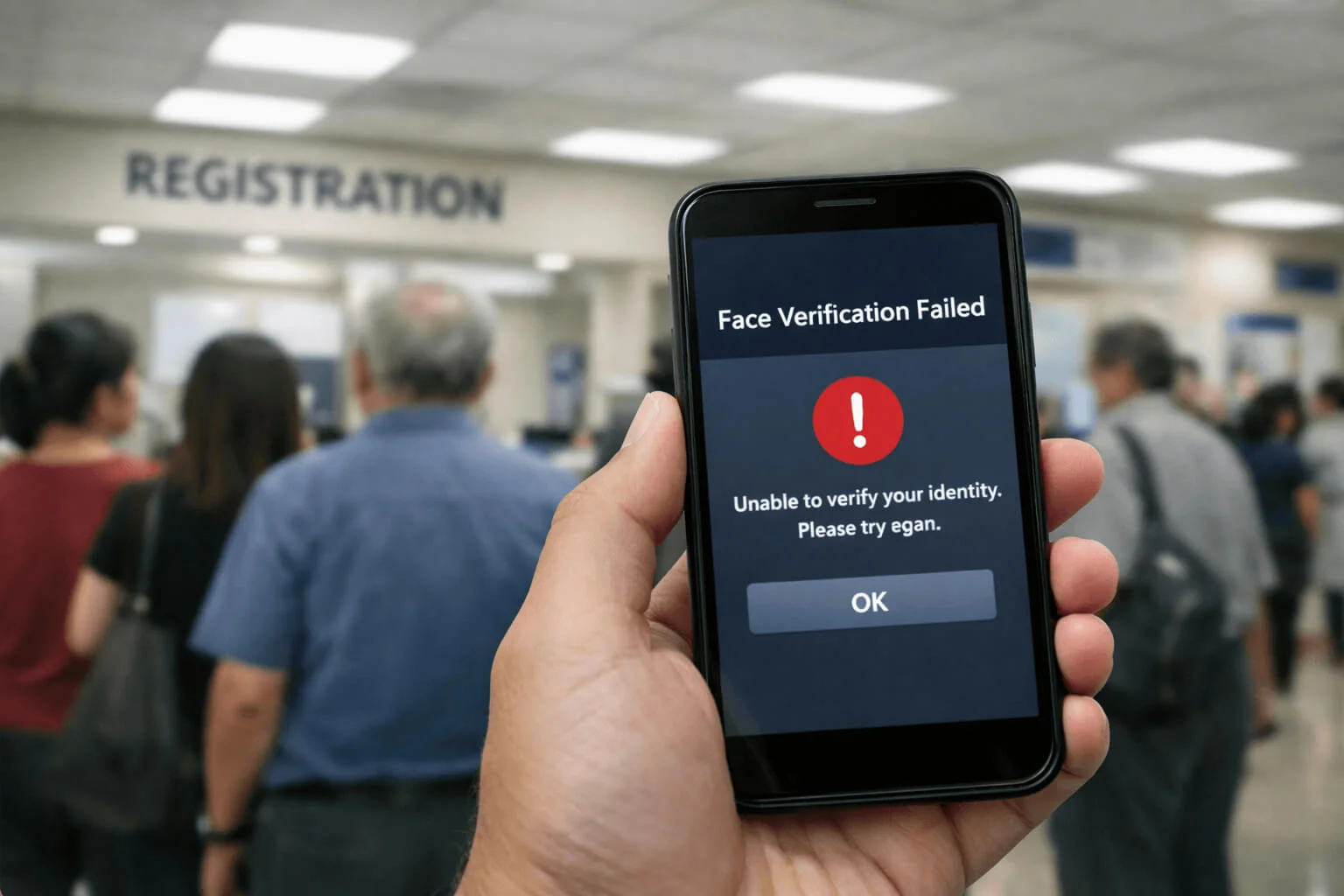
You pull out your phone. You open the app. The screen loads. And loads. And then, the dreaded red text appears: Singpass face verification failed. Or worse: Account locked.
The queue behind you grows. You try again. Your hands start to sweat. You blink aggressively at the camera. Nothing.
Why Singpass issues feel so stressful
Unlike forgetting your Netflix password, a Singpass login problem feels existential. It is the digital equivalent of losing your physical wallet. Because Singpass is integrated into almost every facet of life in Singapore—taxes, healthcare, housing, banking—being locked out triggers a unique kind of urban panic.
This isn’t just a Singpass problem—it’s part of a wider “trust fatigue” people feel with tech right now. Related:Singapore’s AI Fatigue vs Excitement Divide (and why it changes how we trust screens).
But before you start frantically resetting passwords or clicking on “help” links from SMSes (which you should never do), take a breath. Most of the time, the fix is simpler than you think.
The 60-Second Safety Check (Before You Tap Anything)
Tech support calls for Singpass app not working often end in the first minute because of basic phone settings. Check these three things first.
Want more small phone settings that quietly prevent headaches like this? See:Singapore Hidden Tech Features 2026: small settings that save you time (and stress).
Is your phone time/date correct?
This is the secret killer. If your phone’s clock is set manually and is even two minutes off the official network time, security protocols (like SSL certificates) will reject the connection. Go to your phone settings and ensure “Set Automatically” is turned ON for Date & Time.
Internet / mobile data sanity check
Are you connected to a weak public Wi-Fi? Disconnect immediately. Switch to your 4G/5G mobile data. Security apps hate unstable connections and will default to rejecting a login if the connection drops midway.
The “Don’t panic-click” rule
If the app freezes, do not rapidly tap the screen. Each tap might send a new request to the server. Three rapid clicks can sometimes be interpreted by the system as “suspicious bot activity,” leading to a temporary block.
Problem 1 — Account Locked / Login Failed
Seeing Singpass account locked is terrifying, but it is actually a safety mechanism designed to protect you from hackers.
The most common harmless causes
Usually, an account locks because of repeated incorrect password attempts, or the fingerprint/Face ID on your phone failed too many times in a row. Sometimes, it happens after a major app update where cached credentials get corrupted.
Safe steps to try (non-technical)
How to unlock Singpass account safely? Use the official “Forgot Password” or “Reset Password” function directly on the official Singpass website or through the app’s main screen. You will need your NRIC/FIN and the registered mobile number/email address.
When to stop trying (avoid lock escalation)
If you fail the reset process twice, STOP. Continuing to guess will trigger a harder lock that might require a visit to a physical Singpass counter. Wait 12 to 24 hours. Often, temporary soft-locks clear overnight. If urgent, visit an official community centre counter rather than attempting risky bypass methods.
Problem 2 — Face Verification Failed
The Singpass face verification failed error is the most common grievance, especially for users who wear glasses or are trying to log in outdoors.
Lighting / camera / angle basics
Face ID relies on detecting depth and shadows.
* The Backlight Trap: Do not stand with a window or bright light behind you. Your face becomes a dark silhouette.
* The Top Light Trap: Standing directly under a ceiling downlight casts deep shadows over your eyes, confusing the scanner.
* The Fix: Face a window. Hold the phone at eye level, not looking down at your lap.
App permissions & device settings to check
Did you recently update your OS? Go into your phone settings and check if the Singpass app still has permission to use your Camera. Sometimes privacy updates revoke this access automatically.
What to do if it keeps failing
Clean your front camera lens (it’s dirtier than you think). If your Singpass face ID not working issue persists, toggle to the “SMS OTP” or “Password” option at the bottom of the screen. Don’t waste ten minutes fighting the camera.
Problem 3 — OTP Not Received
You hit “Send OTP.” You wait. The timer counts down from 60. Nothing arrives. You are experiencing the dreaded Singpass OTP not received loop.
Network and SMS filtering pitfalls
If you use an iPhone, check your “Filter Unknown Senders” setting. If you use Android, check your Spam folder. Telcos also have spam filters (like ScamShield) that can sometimes misidentify automated shortcodes.
Common user mistakes
Are you overseas? Data roaming might be on, but SMS roaming might not be active. Do you have a dual-SIM phone? Ensure the SMS is routed to the number registered with Singpass.
Safe next steps
Do not hit “Resend OTP” five times in ten seconds. The telco network will throttle the messages. Wait the full 60 seconds. Restart your phone to refresh your connection to the cell tower. If it still fails, use the Face Verification alternative if available.
Problem 4 — App Not Working / Stuck / After Update Errors
Sometimes the Singpass app not working issue isn’t you—it’s the software.
Cache / restart / update cycle
If the app is stuck on a white screen or the loading circle, force-close the app. On Android, go to Settings > Apps > Singpass > Clear Cache (Do NOT “Clear Data” as it will unregister your device).
Storage space & OS version checks
The app requires a secure environment. If your phone storage is 99% full, the app cannot generate the temporary secure tokens needed to log in. Free up at least 1GB of space. Also, older operating systems (e.g., outdated iOS 14) are no longer supported for security reasons.
When reinstall is worth it
If the Singpass login failed after update, a clean install is the last resort. Delete the app. Download it again. Note: This means you will have to re-register the device using your face or SMS OTP.
For Seniors & Families: A Calm “Do This First” Script
Helping a parent with Singpass troubleshooting steps for seniors requires patience. Do not just grab their phone and do it for them.
Two-minute checklist for parents
1. “Ah Ma, let me clean your camera lens first.”
2. “Let’s stand near the window for better light.”
3. “Blink slowly when the screen tells you to.”
What not to do
Never set up your own fingerprint on your parent’s phone to bypass their login. Never screenshot their OTP. These habits bypass security and make them vulnerable to actual scams later. Teach them the process, don’t just solve the puzzle.
It is crucial to know the difference between a technical glitch and a security threat.
| Symptom | Diagnosis | Action |
|---|---|---|
| App stuck on loading screen. | Normal Glitch (Network/Cache) | Force close app, switch to 4G. |
| Face verification repeatedly fails. | Normal Glitch (Lighting/Lens) | Clean lens, face a light source. |
| Received unsolicited SMS with a link to “Unlock Account”. | Danger: Phishing Scam | Delete immediately. Do not click. |
| App asks for credit card info to “verify”. | Danger: Malware / Fake App | Uninstall. Report. Singpass is free. |
How to Tell If It’s a Real Singpass Issue vs Something Else
Red flags of suspicious links
If you receive an SMS or WhatsApp saying “Your Singpass is suspended, click here to update,” ignore it. Official channels do not send clickable links to resolve account locks. They will instruct you to open your app or visit the official gov.sg website.
The “only trust official entry points” habit
How to recover Singpass account safely? Always start from your app icon, or by typing the official URL into your browser yourself. Never enter through a search engine ad or a forwarded message.
If you want a deeper breakdown of the new-style scams (fake calls, WhatsApp impersonations, deepfakes) that often pair with “Singpass locked” bait, read:
AI Scam Alerts in Singapore: How to Spot Deepfakes, Fake Calls, and WhatsApp Impersonations.
Quick Checklist (Save This)
✅ Do This
- Check if your phone’s Date and Time is set to “Automatic”.
- Switch off Wi-Fi and use mobile data for a more secure connection.
- Clean your front camera lens before attempting Face ID.
- Stand facing a light source (like a window) for facial verification.
- Force-close the app and reopen if it freezes.
- Clear the app cache (Android) if it crashes on startup.
- Check your SMS “Spam” or “Filtered” folder for missing OTPs.
- Restart your phone to refresh your network connection.
- Visit an official physical counter if digital resets fail twice.
- Verify app updates in the official Apple App Store or Google Play Store.
❌ Avoid This
- Do not rapidly tap the screen if the app is loading slowly.
- Do not click on “Unlock” links sent via SMS or WhatsApp.
- Do not attempt to guess your password more than three times.
- Do not stand with bright lights behind you during face scans.
- Do not share your OTP with anyone, even family members.
- Do not use public/free Wi-Fi to reset your password.
- Do not download the app from third-party APK websites.
- Do not let others register their face/fingerprint on your device.
- Do not call “support numbers” found randomly on internet forums.
- Do not panic. Your data is safe; it is just a connection issue.
Official Context
Singpass is managed by the Government Technology Agency (GovTech). For official troubleshooting, always refer to the Singpass Help Centre. If you suspect your account is compromised, you can lock it immediately using the official 24/7 Singpass hotline found on their website.
🕰️ One Small Moment
“I was helping my 75-year-old father log in at the polyclinic. His face verification failed five times. He was getting frustrated, embarrassed in front of the queue. I realized the overhead fluorescent light was casting a dark shadow over his eyes. I asked him to take two steps back into the natural light of the window. One scan. Approved. He smiled so proudly. Sometimes it’s not the tech that’s broken; it’s just the angle.”
Editorial Note: This guide is for general troubleshooting and digital safety education. It is not official Singpass support and does not replace instructions from GovTech/Singpass Help Centre. Never share OTPs, passwords, or recovery codes. If you suspect account compromise, use official Singpass entry points only (app icon or typed URL) and follow the Help Centre instructions.
Frequently Asked Questions
📢 Have You Fixed a Singpass Issue Before?
Share your experience in the comments: Which error stumped you the longest? What finally worked? Your solution might save someone’s day.
👉 Help Your Community: Bookmark this guide for when family/friends panic about Singpass errors. WhatsApp it to your estate group chat.
Save This Guide
For your next login panic
Help Parents
Send to older family members
💡 From a CC Staff Member: “When seniors come in panicking about locked accounts, I always ask: ‘Did you try to log in more than three times?’ They say yes. I say, ‘Go have kopi, come back tomorrow. Your account will unlock itself.’ Works every time.”